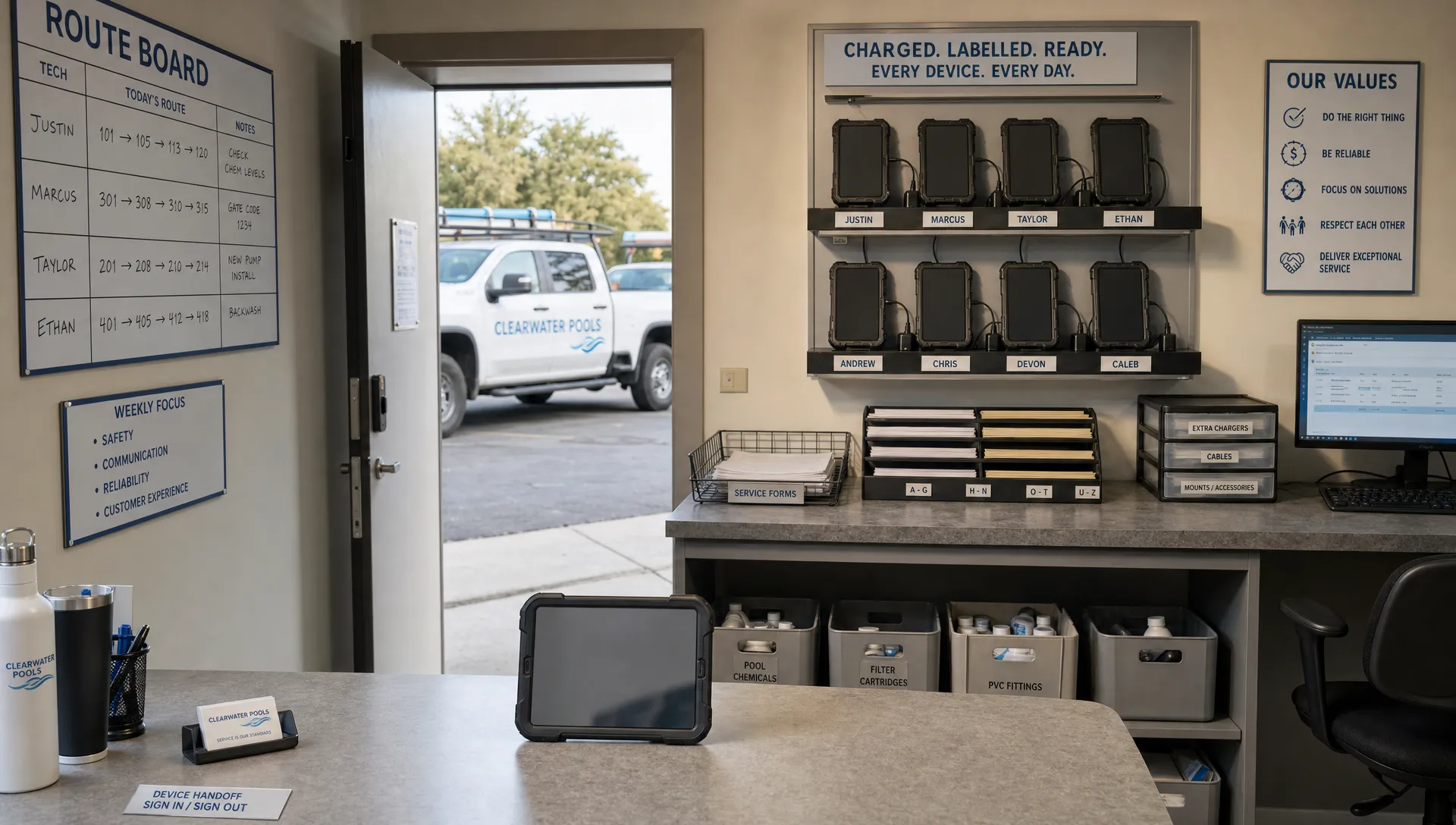
A pool service software login on a shared device should identify the person doing the work, not just the tablet or office computer. Otherwise, one technician can inherit another person’s access, customer messages can be sent under the wrong name and an employee’s session can stay open after their shift ends.
The safest operating rule is simple: share the hardware, not the account. Give employees individual identities, check what happens to offline work during sign-out and make account switching part of every device handoff.
Start with the correct website and account type
Use an employer-approved bookmark or an app installed through a verified vendor link. Avoid choosing a login page simply because it appears first in search results or arrives in an unexpected text message.
For SplashIQ, start at the official SplashIQ website and follow the access instructions provided during onboarding or by your account administrator. Do not guess a sign-in URL or download an installer from an unrelated directory. Check the actual domain before entering credentials; a padlock alone does not prove a website is legitimate.
Also confirm which account you need. Technician access, office access and a homeowner portal serve different users. Do not assume they share credentials, password-reset processes or permissions.
On a shared browser, check the account name before opening a customer record. A saved session or autofilled password may belong to the previous user, even when the device itself is assigned to your truck.
Every pool service software login needs a named owner
A shared username makes it harder to determine who changed a chemical reading, completed a visit or sent an invoice. Named accounts support accountability without requiring every technician to carry a separate company tablet.
Security features vary by product and plan. Treat MFA, permissions, audit logs and session controls discussed here as capabilities to verify, not confirmed SplashIQ features.
Ask the vendor how individual users are licensed and how account switching works on shared hardware. Where permissions are available, organize access around actual duties:
| User | Access to consider | Access to restrict unless needed |
|---|---|---|
| Route technician | Assigned stops, service notes, water readings and visit photos | Company-wide exports, user administration and financial settings |
| Dispatcher | Scheduling, assignments and relevant customer communication | Security administration and payment configuration |
| Billing employee | Invoices, payment status and billing contacts | Unrelated field records and device administration |
| Owner or administrator | User provisioning and business configuration | Routine use of administrative privileges for field work |
These are starting points for a permissions review, not universal settings. A small company may combine duties, but it should still know which person performed each action.
Build a repeatable shared-device handoff
A secure pool service software login process needs a clear boundary between the outgoing and incoming technician. Locking the tablet is useful during a stop, but it does not necessarily end the application session.
For a planned handoff, use this sequence:
- Finish the current visit: Save readings, notes and photos, then confirm whether anything remains pending.
- Check synchronization: When connected, verify that completed work has reached the office system rather than relying only on a local “saved” message.
- Sign out through the application: Use the documented process instead of merely closing a tab or swiping away the app.
- Switch the device profile if applicable: Use a separate operating-system profile only where the device and your management setup support it.
- Verify the incoming user: Have the next technician sign in and check their name and assigned work before making changes.
Test this sequence with non-sensitive sample records before making it company policy. Confirm whether the previous user’s pages, attachments or notifications remain accessible afterward.
If safe account switching is not supported, ask the vendor for an approved alternative. Until that is resolved, keep the device assigned to one employee rather than circulating an administrator’s credentials among the crew.
Handle offline work before switching accounts
A pool service software login can control server access without necessarily removing information already stored on a device. Offline operation therefore needs its own handoff rules.
SplashIQ includes an offline field app, but the supplied product information does not establish how its local storage, sign-out behavior or account switching works. Confirm those details directly before sharing a tablet between technicians.
During a controlled test, save a sample visit without connectivity. Reconnect and check whether its readings, notes and photos arrive in the correct customer record. Then follow the vendor’s sign-out procedure and determine whether the next user can see the previous user’s information.
Ask the vendor:
- Does signing out preserve, remove or block access to unsynced work?
- Can a different employee sign in while another user has pending uploads?
- What happens to offline access after an account is disabled?
- Which recovery steps can erase local records?
Do not clear app storage, uninstall the app or reset the device as a routine sync fix before checking for unsent work. Those actions can remove information that exists only locally.
For planned handoffs, resolve pending work first. A lost device or suspected compromise is different: containment takes priority, and security action should not wait for the tablet to reconnect.
Strengthen authentication without creating a shared secret
Protect each pool service software login with a unique password and MFA where the vendor supports it. The Cybersecurity and Infrastructure Security Agency’s MFA guidance explains why an additional authentication factor helps protect an account when its password is compromised.
Avoid making the shared tablet the place where everyone can retrieve everyone else’s credentials. A company password manager can help, but a broadly shared vault containing individual employee passwords defeats the separation you are trying to create.
Similarly, sending every employee’s verification codes to one truck phone weakens individual accountability. Choose an authentication setup that the vendor supports and your business can recover when a phone is lost or an employee leaves.
Keep recovery codes in restricted company custody, not in a tablet photo album or a note attached to a customer record. Document who can authorize recovery and how that person verifies the employee’s identity.
At the device level, enable a strong screen lock, automatic locking and software updates. Company-managed hardware may also support remote locking or wiping, but confirm those capabilities before relying on them.
Troubleshoot access without exposing credentials or losing records
A failed sign-in does not always mean the password is wrong. The user may be on the wrong portal, using an expired invitation or encountering an account restriction.
Before resetting a pool service software login, confirm the official access point, the employee’s account email and whether the device has connectivity. Then use the vendor’s documented recovery process.
| Problem | Safe first step | Avoid |
|---|---|---|
| Forgotten password | Request a reset from the verified sign-in page and use the newest reset message | Forwarding reset links to a group chat |
| Account locked or disabled | Ask the authorized administrator or vendor support to check account status | Repeatedly guessing passwords or borrowing a coworker’s account |
| MFA device unavailable | Follow the approved recovery process and verify the requester’s identity | Turning off protection solely because someone sends an urgent text |
| App fails after an update | Check supported app and operating-system versions, then contact support if needed | Installing an unofficial or older download |
| Work missing after reconnecting | Inspect pending uploads and confirm the signed-in account | Clearing storage or creating duplicate visits immediately |
When contacting support, provide the error wording, device model, app version and approximate time of failure. Exclude passwords, verification codes, reset links and unnecessary customer information from screenshots.
Private browsing can reduce some browser history and session persistence, but it is not a complete shared-device safeguard. It does not secure downloaded files or manage another application’s offline records.
Respond differently to a lost device or departing employee
When a tablet disappears, treat an open pool service software login as an access incident, not just a missing piece of equipment. Notify the person responsible for company accounts immediately.
From a trusted device, use the controls your system actually provides to disable the affected account, revoke active sessions or remove a device’s access. Changing a password may not terminate every existing session, so confirm the vendor’s behavior rather than assuming it does.
If company device management is available, consider remote locking or wiping under your incident procedure. Remember that a remote command may not take effect until the device reconnects, and wiping may destroy unsynced work. It cannot undo information already viewed or copied.
For a planned departure, transfer legitimate work before removing access. Then review recovery methods, active sessions and any shared credentials the employee knew. Do not leave an account active merely to preserve historical records; ask the vendor how records remain available after deactivation.
Record what happened, which access was removed and what follow-up is needed. This gives the next administrator a reliable account of the response.
Make access controls part of CRM growth
As a contractor adds routes, office staff and repair work, informal account sharing becomes harder to track. A pool service software login policy should grow alongside the workflow, rather than being added only after a billing dispute or lost tablet.
SplashIQ’s article on how pool service business software supports growth describes how connected scheduling, technician records and follow-up can reduce manual coordination. For contractors using CRM software to scale, reliable user identity supports that coordination: managers need to know who recorded the work before drawing conclusions from it.
That matters for technician scorecards, too. SplashIQ lists scorecards among its features, but any employee-level reporting becomes less trustworthy when several people operate under one identity.
For peer perspectives, Reddit search results for contractor CRM discussions can help you find owner experiences and questions to ask during an evaluation. These are community discussions, not verified evidence that a particular platform supports a security control.
Keep a short access procedure covering account creation, device handoffs, recovery and departures. Give it to new hires and test it whenever your app, devices or authentication setup changes. A procedure that cannot be completed at the truck needs adjustment before it becomes a daily requirement.
Frequently asked questions
Can two technicians use the same tablet? Yes, if the software and device support an appropriate handoff process. Use separate employee accounts, confirm the outgoing user’s work is handled correctly and verify the incoming user’s identity before continuing. Check licensing and account-switching requirements with the vendor.
Does closing the browser end a pool service software login session? Not necessarily. Closing a window, locking the screen and signing out are different actions. Use the documented sign-out process and test whether reopening the browser restores access. Session behavior varies by application and browser configuration.
Are technician and homeowner portal credentials the same? Do not assume so. Staff and homeowner access may use separate invitations, account records or authentication systems. Follow the instructions for the intended portal rather than trying an employee password on multiple pages.
Should an office employee sign in for a technician who is locked out? Avoid substituting someone else’s account. It can expose additional records and misattribute work. Use the approved recovery process, then follow your temporary documentation procedure if service must continue before access is restored.
Check the handoff before the next route
Choose one shared device and test sign-in, offline work, synchronization, sign-out and account recovery with sample records. Document the gaps before expanding the process across your team.
When evaluating SplashIQ’s pool service software, ask to see those same steps demonstrated alongside the scheduling, field documentation and billing workflows your crew needs.